Draw your first room scan with the RPLIDAR C1
Bench procedure adapted from SLAMTEC’s ROS 2 example. The first observable result is a board moving in a live scan. Inside AI has not run it on hardware.
Device profile · SLAMTEC RPLIDAR C1 (C1M1) ↗This is a proposed workflow. Follow the linked official setup, then use the checks below to decide whether it works on your hardware.
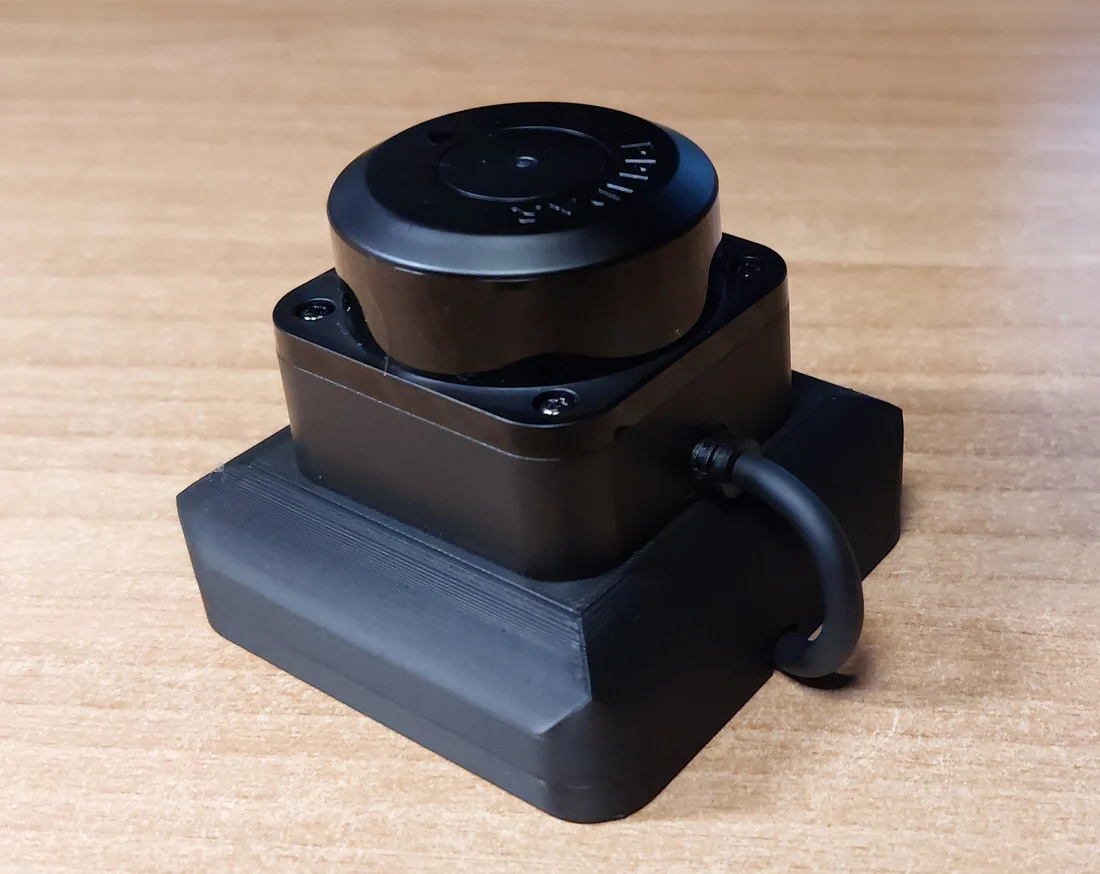
Connect one scanner
Use a compatible Linux host with a ROS 2 desktop installation, RViz and colcon. Match the USB adapter and data cable to your actual kit. Place the C1 on a level, stable surface with a clear scan window. Connect it and identify its serial port.
Start the vendor’s C1 viewer
Build the sllidar_ros2 package as described in its README, source the workspace and give your user access to the serial device. The C1 example defaults to /dev/ttyUSB0, 460800 baud and the laser frame. Supply serial_port:= followed by the actual device path when it differs.
ros2 launch sllidar_ros2 view_sllidar_c1_launch.pyCheck the geometry
Move a flat opaque board across the sweep, then take it away. Look for a short trace moving while the distant wall stays still. In a second sourced shell, measure the scan message rate. An empty display calls for checking serial access, the correct launch file and the RViz fixed frame before experimenting with mapping.
ros2 topic hz /scanAdd a moving platform
For a proposed floor map, mount the scanner rigidly and measure its pose relative to the cart base. Supply a timestamped odometry-to-base transform from an independent motion estimator such as wheel encoders. Give SLAM Toolbox both that transform and the scan. Save the occupancy grid and compare it with measured room features.